
Device Deployment
The deployment feature helps you roll out new devices quickly: connect a device to a prepared port, and PrivateLAN detects it and guides you through configuring it.
Preparing ports for deployment
On the deployment setup page, select a switch and choose which of its free, non-trunk ports should be available for deployment. For the selected ports, choose one of:
- Deploy — mark the ports as deployment ports and assign them to a device group, which determines the VLAN new devices will use (see VLANs and Device Management)
- Default — reset the ports to their factory default configuration and remove the deployment marking
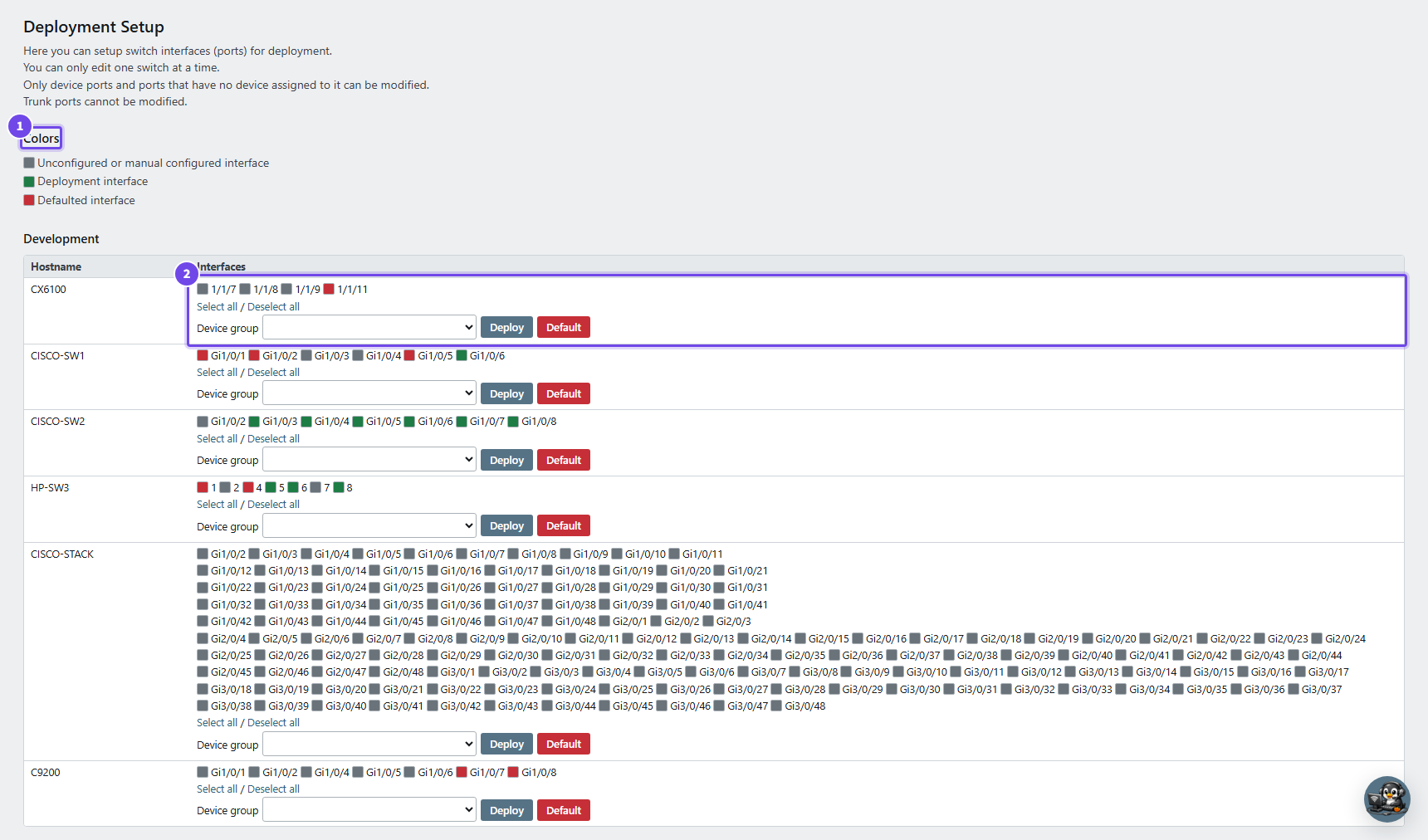
- Colors — gray, green and red, as described below
- A switch — tick the ports, choose a device group, then Deploy or Default
Ports are shown with a color to indicate their status: gray (unconfigured or manually configured), green (marked for deployment), or red (reset to default).
Deploying a device
Connect the new device to a port marked for deployment. The deployment overview page then shows:
- The port the device was detected on (group, switch, interface)
- Connection speed, PoE status and the device's MAC address
- A suggested device type based on these characteristics, for example "Camera with PoE" or "End device without PoE"
If the detected MAC address matches a device you already created, click Program to assign the device to that port immediately. If not, click Add to create a new device, pre-filled with the detected MAC address.
Both buttons open a dialog that names the port and says what will happen:
- Program assigns the port to the existing device straight away, then resets the port and programs it with the VLAN and configuration of the device's device group.
- Add changes nothing yet. It opens the new device form, which shows the port the device will get. Choose a hostname and device group there; when you click Save, the device is created, the port is assigned to it and programmed with the device group's VLAN and configuration.
As with Save on a device, hold Ctrl (Cmd on a Mac) when you click Program or Add to program the port without resetting or switching it off, or Ctrl+Shift to only save the assignment and leave the switch as it is. A choice made on Add is shown on the new device form and used when you save, unless you hold one of the keys on Save itself. See Saving without a port reset, or without programming for what each choice leaves on the port.
Workflow summary
- Mark deployment ports and assign them to a device group (setup page)
- Connect the new device — it appears on the deployment overview page
- Program an existing device, or add a new one
- PrivateLAN configures the port and device automatically
