
Licenses
Your PrivateLAN license determines which features are available and how many switches and devices you can configure. VLANs, users and RADIUS clients are not limited: create as many as you need.
Viewing your license
The license page shows the current status of your license, including the limits that apply to your installation: number of switches and devices, available features, expiration date and SLA terms.
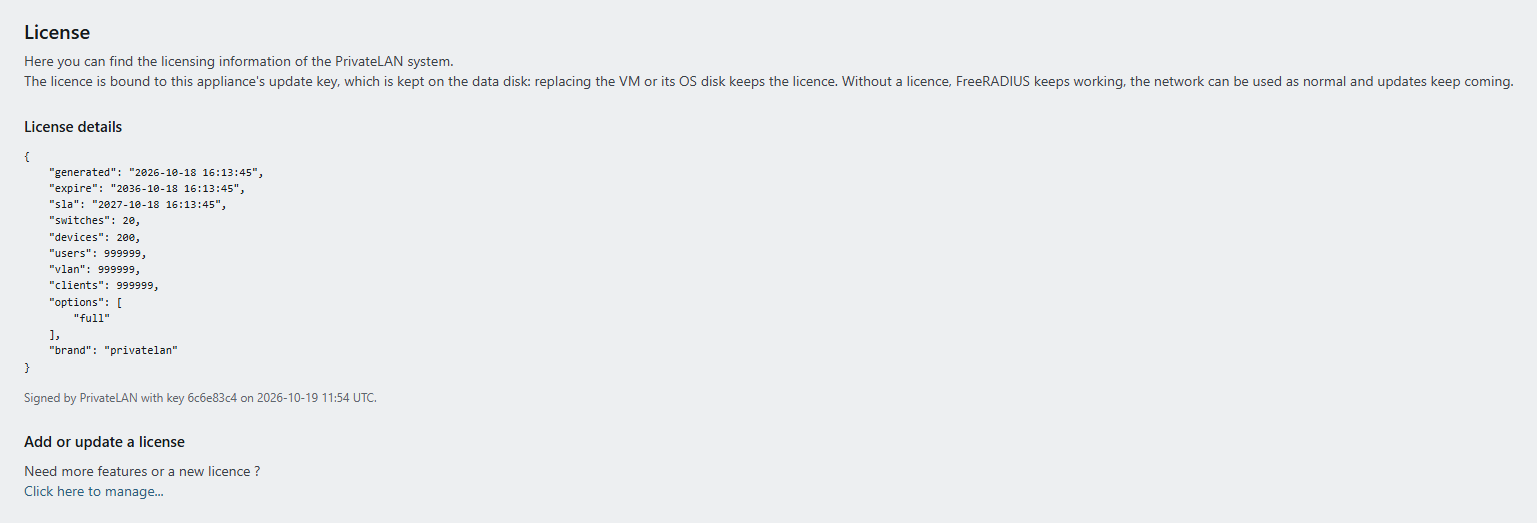
License options
Some parts of PrivateLAN are license options, shown under the available features:
- Reports & Inspection — every report, including the PDF exports, and the Inspection pages, including the SSL inspection of devices and the configuration compliance check, the inspection tile on the dashboard and the inspection and SSL check webhooks
- SOC — the SOC live view with its alarms, live feed and alarm history, and the offline alarm per device group
- Audit log and Syslog — the audit log and syslog pages
- Chat (AI), Camera Live View and QR Support
A Full license includes every option. A page that belongs to an option your license does not include shows a license restriction instead of its content, and its menu entry is shown with a lock and says Not licensed when clicked; request an updated license to add it. System > AI stays available without Chat (AI), so you can always switch Tux off.
License binding
Each license is issued for one appliance: it names the appliance's instance and its update key, and PrivateLAN signs it. The appliance creates its update key when the default admin password is changed and keeps it on the DATA disk. It checks the signature and both names itself, without an internet connection, and refuses a license that was changed, that was issued for another appliance, or that is older than the license imported last. A license from before signed licenses (one that does not start with PL.) is no longer accepted; request a new one as described below.
Requesting a new or updated license
If you need to change your license, for example to add more switches or devices, generate a License Request ID on the license page and send it to PrivateLAN support. Once you receive your new license, a text that starts with PL., paste it into the license page to activate it. Line breaks that an e-mail program adds to it do no harm.
Licence and updates
Online updates are only delivered to an appliance whose licence is linked to its own update key. The appliance creates that key when the default admin password is changed, and the License Request ID includes it from then on, so a licence generated from it is linked automatically. PrivateLAN makes the link when it generates the licence, so requesting and importing a licence needs no internet connection on the appliance, exactly as before.
The Updates block on the license page shows the key and whether the link is in place. The appliance can only check that with PrivateLAN's update service, so right after an import it says the link is being checked, and an appliance without internet access says it cannot check it. If it says the key is not linked yet, request a licence with the current License Request ID and import the licence you receive. The link is not tied to the licence period: an appliance whose licence has expired keeps receiving updates.
An appliance without internet access does not need the link at all: it is updated with an offline update, and its licence works without a connection.
Replacing your virtual machine
The license follows the update key on the DATA disk. If you move the DATA disk to a new virtual machine, or replace only the OS disk (see Offline updates), the license keeps working; there is nothing to plan or apply. A new appliance with a DATA disk of its own has a new update key and needs its own license: generate a License Request ID on it and send it to PrivateLAN support.
